Blog/Product News
QuantRidge Now Works With Your AI Assistant (MCP)
·~11 min read·QuantRidge Editorial Team
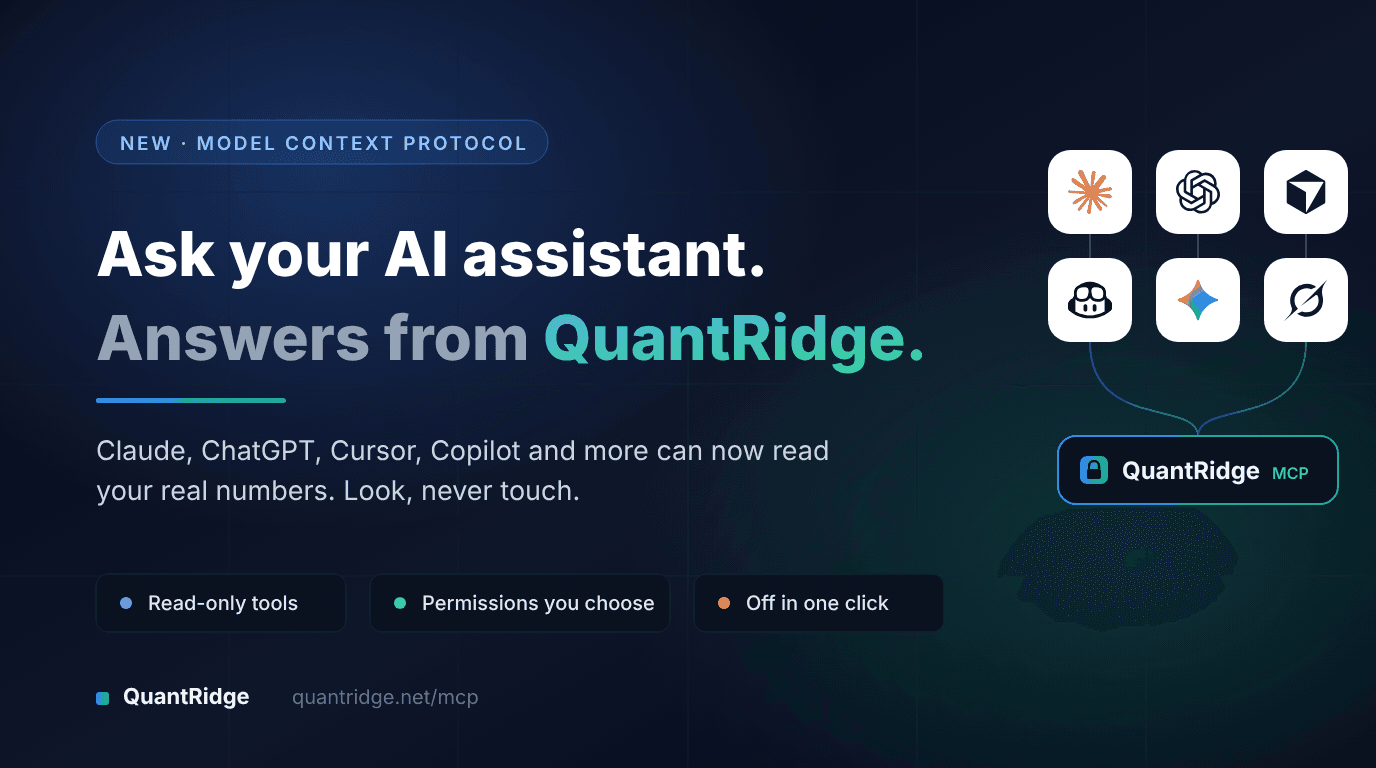
Ask your assistant how you are doing against your budgets, and it can now look the answer up in QuantRidge instead of waiting for you to paste numbers into the chat. The connection is read-only, it reads only the permissions you tick, its keys expire on their own, and you can switch it off in one click. This is what that means in practice, and how to set it up in Claude, ChatGPT, Cursor and the rest.
What MCP is, in plain words
Most people who use an AI assistant for money questions do the same thing: open their accounts in one tab, copy the numbers into a chat in another, and hope they did not miss a row. It works, just about, and it means the assistant only ever sees the slice you remembered to paste.
The Model Context Protocol, MCP for short, is an open standard that fixes this. It lets an assistant use tools that another service provides. When you ask a question, the assistant can call one of those tools, get a real answer back, and use it in its reply.
QuantRidge now runs an MCP server. Connect it to the assistant you already use, and you can ask “how am I doing against my budgets this month?” or “what is my asset mix?” and get an answer worked out from your actual accounts. The assistant does the talking; QuantRidge supplies the facts.
What an assistant can read
Access comes in five permissions. You tick the ones you want when you connect, and an assistant can use only the tools under them. QuantRidge answers only when the assistant asks; nothing is sent ahead of time.
| Permission | What it reads | Tools |
|---|---|---|
| Investments | Your portfolios, holdings and positions, and your net worth summary. | List portfolios, Portfolio holdings, Net worth |
| Cash flow | Account balances (last four digits only), recent transactions, budgets, subscriptions, upcoming bills, and spending and cash-flow summaries. People you pay through Zelle or Venmo are not named. | Account balances, Recent transactions, Budgets, Subscriptions, Upcoming bills, Spending summary, Cash flow summary |
| Debts | Your cards and loans: what you owe, interest rates, minimum payments, due dates, interest paid and payoff dates. | Debts, Interest paid |
| Goals | Your financial goals, their targets and progress, and your retirement plan summary. | Goals |
| Profile | The name you go by, your risk tolerance, planning horizon and retirement target. Not your full name or anything sensitive. | Profile |
The transactions tool looks back at most 90 days and returns at most 100 transactions at a time, so even a broad question gets a bounded answer.
And some things are out of reach whatever you tick:
- Social Security or tax ID numbers
- Your date of birth
- Full account or card numbers (only the last four digits)
- Your email address, phone number, home address or income
- The names of people you send or receive money from (shown as "Zelle transfer")
- Passwords, bank logins or connection tokens
- Anyone else’s data, including household members’ private accounts
Read-only, and how we keep it that way
Handing an AI assistant a view of your finances should make you ask hard questions. These are the answers, each one something the server enforces rather than a policy we hope to follow.
Read-only, by design
The server has 14 tools and every one of them reads. There is no tool that moves money, places a trade, edits a record or sends a message, and no permission that would allow one.
You choose what it reads
Investments, Cash flow, Debts, Goals and Profile are separate permissions. Debts is never ticked for you. Tick only the ones you want. An assistant asking for a tool outside them is refused.
You sign in on QuantRidge, not in the assistant
Connecting opens QuantRidge’s own sign-in and consent page. Your password never reaches the assistant. The page shows the app’s self-chosen name, marked as unverified, and the address it will return to, so you can check it is the assistant you meant.
Keys that expire on their own
A connected assistant gets a key that lasts 60 minutes and a 30-day renewal key that is replaced every time it is used. If an old renewal key is ever presented again, the whole connection is cut. Every connection ends one year after you approved it.
Stored as fingerprints
QuantRidge keeps only a fingerprint (a SHA-256 hash) of each key and token, never the key itself. A personal token is shown once, when you make it, and cannot be shown again.
Limited and logged
Each token or connected app can make 60 requests a minute and 1,000 a day. Every read is recorded in your activity log.
Off in one click
Disconnect an app or revoke a token under Settings → Integrations → AI assistant and it stops at once. Resetting your password, signing out everywhere or deleting your account also ends every connection and token.
Server to server only
Tokens are accepted from an assistant’s servers or your own computer, not from a web page in a browser, so a malicious site cannot use a token it has somehow seen.
Two ways to connect sit on top of this. Assistants that support MCP sign-in (claude.ai, ChatGPT and others) open QuantRidge’s own consent page, where you sign in, see which app is asking and where it will send you back, and tick what it may read. Tools that cannot do that use a personal token instead: you make it in Settings, choose its permissions and whether it lasts 30, 90 or 365 days, and paste it into the tool. You can hold up to 10 at once.
Set up Claude: claude.ai, Desktop and Code
Everything starts from one address:
https://app.quantridge.net/api/mcpClaude (claude.ai, and the Claude desktop and mobile apps)
Add QuantRidge as a custom connector, then sign in to QuantRidge and approve. There is no token to copy.
- On claude.ai, open Settings → Connectors and choose Add custom connector.
- Name it QuantRidge and paste the server address. Leave the advanced OAuth settings empty: Claude registers itself.
https://app.quantridge.net/api/mcp - Choose Add, then Connect. A QuantRidge page opens. Sign in, check that it will return to claude.ai, tick what Claude may read, and choose Allow.
- In a chat, open the tools menu and make sure QuantRidge is switched on. Then ask, for example, “How am I doing against my budgets this month?”
- A connector added on claude.ai is also available in the Claude desktop and mobile apps signed in to the same account.
- On a Team or Enterprise plan, an owner may need to add the connector for the organisation before members can connect it.
- If you do not see Add custom connector, your Claude plan or your organisation’s settings may not allow custom connectors.
Claude Desktop (the Claude app for macOS and Windows)
Use the same connector as claude.ai, or, if you prefer a token, add a local bridge to the configuration file.
- Easiest: add QuantRidge as a custom connector, with the same steps as for claude.ai (Settings → Connectors, in the desktop app or on the web). It is then available in the desktop app too.
- With a token instead: make a personal token in QuantRidge (Settings → Integrations → AI assistant → Create token) and copy it.
- In Claude Desktop, open Settings → Developer → Edit config, and add this to claude_desktop_config.json, with your token in place of the placeholder. It uses the mcp-remote bridge, which needs Node.js.
{ "mcpServers": { "quantridge": { "command": "npx", "args": [ "-y", "mcp-remote", "https://app.quantridge.net/api/mcp", "--header", "Authorization:${QUANTRIDGE_AUTH}" ], "env": { "QUANTRIDGE_AUTH": "Bearer <your token>" } } } } - Quit and reopen Claude Desktop. QuantRidge appears in the tools menu of a new chat.
Claude Code (the terminal and IDE extensions)
One command to add the server, then sign in from inside Claude Code.
- In a terminal, add the server. Add --scope user if you want it in every project, not only this one.
claude mcp add --transport http quantridge https://app.quantridge.net/api/mcp - Start Claude Code, type /mcp, choose quantridge and then Authenticate. Your browser opens QuantRidge: sign in, tick what it may read, and choose Allow.
- Back in Claude Code, ask a question such as “Summarise my portfolio’s asset mix.”
- Prefer a token? Make one in QuantRidge Settings and add the server with it: claude mcp add --transport http quantridge https://app.quantridge.net/api/mcp --header "Authorization: Bearer <your token>"
ChatGPT, Gemini, Copilot, Cursor, Grok and Perplexity
Support for MCP differs from one assistant to the next, and changes quickly. What follows is what we could confirm in November 2026. Plans and menu names change; the setup page is kept current, and if a step looks different, tell us.
ChatGPT (chatgpt.com)
Create a custom connector in developer mode, then sign in to QuantRidge and approve.
- In ChatGPT, open Settings → Apps & Connectors → Advanced settings and turn on Developer mode.
- Back in Apps & Connectors, choose Create. Name it QuantRidge, paste the server address, and choose OAuth for authentication.
https://app.quantridge.net/api/mcp - Choose Create. A QuantRidge page opens: sign in, check that it will return to chatgpt.com, tick what ChatGPT may read, and choose Allow.
- In a new chat, turn QuantRidge on from the tools menu and ask your question.
- Custom connectors are available on some ChatGPT plans, and a workspace administrator may need to allow them. If you do not see Developer mode, your plan or workspace does not offer it yet.
Gemini (Gemini CLI)
Gemini CLI connects with a personal token. For the Gemini app on the web and phones, see the note below.
- Sign in to QuantRidge and open Settings → Integrations → AI assistant. Choose Create token, give it a name, tick what it may read, pick how long it lasts, and copy it. It is shown only once.
- Add this to ~/.gemini/settings.json (merge it with what is there), with your token in place of the placeholder.
{ "mcpServers": { "quantridge": { "httpUrl": "https://app.quantridge.net/api/mcp", "headers": { "Authorization": "Bearer <your token>" } } } } - Start gemini and type /mcp. quantridge should be listed as connected, with its tools.
- The Gemini app (gemini.google.com and the phone apps): coming soon. Google has begun offering custom connected apps on some accounts, and we have not yet confirmed that it works with QuantRidge.
GitHub Copilot (Copilot Chat in Visual Studio Code)
Add the server to VS Code’s MCP configuration, then sign in to QuantRidge when VS Code asks.
- Add this to .vscode/mcp.json in your workspace (or run “MCP: Add Server” from the Command Palette to add it for every workspace).
{ "servers": { "quantridge": { "type": "http", "url": "https://app.quantridge.net/api/mcp" } } } - Start the server when VS Code offers to. It asks to sign in: allow it, then sign in to QuantRidge, tick what Copilot may read, and choose Allow.
- Open Copilot Chat in agent mode and check that QuantRidge’s tools appear under the tools button.
- Prefer a token? Add "headers": { "Authorization": "Bearer <your token>" } beside "url", with a personal token from QuantRidge Settings.
- Microsoft Copilot (the consumer app): not supported yet. It does not offer custom MCP connections.
- Microsoft 365 Copilot and Copilot Studio: an organisation’s administrator can add MCP servers in Copilot Studio. We have not tested QuantRidge there yet.
Cursor (the Cursor editor)
Make a personal token in QuantRidge and add the server to Cursor’s MCP configuration.
- Sign in to QuantRidge and open Settings → Integrations → AI assistant. Choose Create token, give it a name, tick what it may read, pick how long it lasts, and copy it. It is shown only once.
- Add this to ~/.cursor/mcp.json (every project) or .cursor/mcp.json in one project, with your token in place of the placeholder.
{ "mcpServers": { "quantridge": { "url": "https://app.quantridge.net/api/mcp", "headers": { "Authorization": "Bearer <your token>" } } } } - Open Cursor Settings → MCP (Tools & Integrations in newer versions) and check that quantridge is switched on and shows its tools.
- Prefer to sign in instead? Leave out "headers". Cursor then offers to log in to the server: sign in to QuantRidge, tick what Cursor may read, and choose Allow.
- Keep the file out of version control if it holds a token: anyone with the token can read what it allows until it expires or you revoke it.
Grok (grok.com and the Grok apps)
Add a custom connector on grok.com, then sign in to QuantRidge and approve.
- On grok.com, open Connectors, choose New Connector and then Custom.
- Paste the server address.
https://app.quantridge.net/api/mcp - A QuantRidge page opens: sign in, tick what Grok may read, and choose Allow.
- Custom connectors are available on some Grok plans. We have not yet tested QuantRidge with Grok end to end; if a step looks different, tell us at support@quantridge.net.
Perplexity (Perplexity, where custom connectors are available)
On plans that offer custom connectors, add QuantRidge as a remote connector and sign in.
- In Perplexity, open Settings → Connectors and choose to add a custom remote connector.
- Paste the server address.
https://app.quantridge.net/api/mcp - A QuantRidge page opens: sign in, tick what Perplexity may read, and choose Allow.
- Perplexity offers custom remote connectors on some paid plans; depending on yours, it may be in the Mac app only or need an administrator to turn it on. We have not yet tested QuantRidge with Perplexity end to end.
Other tools (any MCP client that speaks Streamable HTTP)
Any client that can connect to a Streamable HTTP server and send a header works with a personal token. Clients that support MCP sign-in can use the address alone.
- Sign in to QuantRidge and open Settings → Integrations → AI assistant. Choose Create token, give it a name, tick what it may read, pick how long it lasts, and copy it. It is shown only once.
- Give your client the address and the header. The exact file and field names differ by client; this is the shape.
{ "name": "quantridge", "transport": "streamable-http", "url": "https://app.quantridge.net/api/mcp", "headers": { "Authorization": "Bearer <your token>" } } - Windsurf, for example: add this to ~/.codeium/windsurf/mcp_config.json.
{
  "mcpServers": {
    "quantridge": {
      "serverUrl": "https://app.quantridge.net/api/mcp",
      "headers": {
        "Authorization": "Bearer <your token>"
      }
    }
  }
}
What it does not do
- It cannot act. No tool moves money, places a trade, changes a budget, edits a goal or sends anything. If you ask your assistant to do one of those things, it has no way to.
- It is not advice. QuantRidge is software, not a registered investment adviser. An answer worked out from your real numbers is still information, not a recommendation.
- It cannot see other people’s money. A connection reads only your own data, never a household member’s private accounts.
- It does not control the assistant. Once your assistant has an answer, how long it keeps the chat and what it does with it are up to its provider and your settings there. Connect the assistants you already trust.
Questions
Which AI assistants work with QuantRidge today?
Claude (claude.ai, the desktop and mobile apps, and Claude Code), ChatGPT, GitHub Copilot in VS Code, Cursor, Grok and Perplexity where custom connectors are offered, Gemini CLI, and any other MCP client that can send a header. The Gemini app and the consumer Microsoft Copilot app do not offer custom connections yet. The current list, with steps, is at quantridge.net/mcp.
Is this the same as giving an AI my bank login?
No. Your bank and brokerage logins never leave the providers that hold them, and QuantRidge never gives them to anyone. An assistant gets a read-only key to the data QuantRidge already shows you, limited to the permissions you tick, and you can switch it off at any time.
Does QuantRidge see my conversations with the assistant?
No. QuantRidge receives only the request the assistant makes, such as “recent transactions, last 30 days”, and answers it. Your conversation stays with the assistant.
Can I let it see my budgets but not my investments?
Yes. Investments, Cash flow, Debts, Goals, Profile are separate permissions. Tick Cash flow only, and the investment tools are refused.
What if a personal token leaks?
Revoke it in Settings → Integrations → AI assistant and it stops at once. Until then it can read only what you ticked, at most 60 requests a minute, and it expires on its own after the 30, 90 or 365 days you chose. The token list shows when each token was last used, so a token in use somewhere unexpected is easy to spot.
What does it cost?
Nothing extra from QuantRidge. It works while your QuantRidge subscription or free trial is active. Your assistant may need a plan of its own that supports connectors.
More answers, including how long a connection lasts and how to disconnect, are on the setup page. Anything else goes to support@quantridge.net, and a person answers it.
© 2026 QuantRidge. Educational content; not tax or investment advice.